

Overview
ScanEZ now supports optional ICC color profile processing for scanner-generated images to improve and optimize scan quality. This feature allows color correction based on the specific scanner model being used.
ICC profile processing is fully configurable from the Control Panel and applies only to images generated by scanners. Images originating from Cloud or USB sources are never affected.
This enhancement does not change the default scanning workflow. When enabled, it simply enhances scanned images by applying scanner-specific color optimization.
This document explains:
What is ICC Profile Processing
ICC (International Color Consortium) / ICM (Image Color Management) profiles are used to ensure accurate and consistent color reproduction across devices.
In ScanEZ, ICC profiles are used to:
-
Apply scanner-specific color correction.
-
Improve scan output quality.
-
Ensure consistent color rendering for scanned documents.
ICC processing is applied only once per scanned image and only immediately after scan completion.
Configuration – Control Panel
Enable ICC Profile Setting
-
On the Control Panel, navigate to:
-
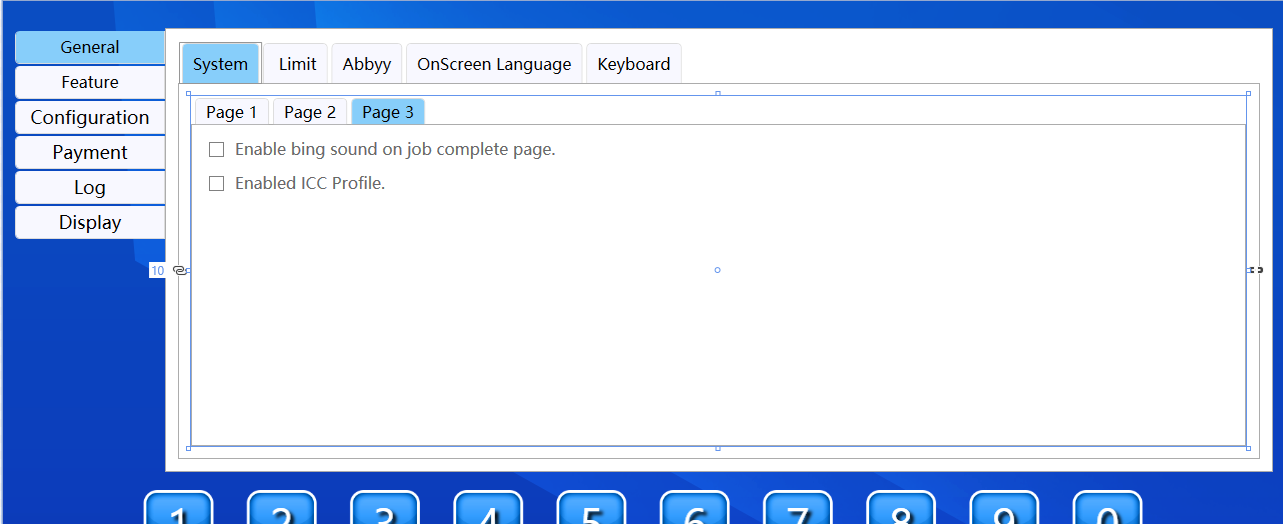
Configuration → System → Page 3
-
Enable the setting: Enabled ICC Profile
-
Checked (True)
ICC profile processing is enabled for eligible scanner-generated images. -
Unchecked (False)
ICC profile processing is completely disabled and bypassed.
This is the only configuration required.
Once enabled, ICC processing is automatically applied wherever scanning occurs.
Acceptance criteria
-
The ICC setting must be off by default during installation upon upgrading from older version of scanEZ (Existing customer)
-
The ICC setting should be on if the installation is fresh / new customer.
Supported Image Sources
ICC Profiles ARE Applied To
ICC profiles are applied only to images generated directly from scanner or any other scanner-based workflows in ScanEZ.
ICC Profiles Are NOT Applied To
ICC profiles are never applied to images originating from:
-
Cloud
-
USB
This ensures imported or externally sourced images remain unchanged.
ICC Profile Storage & Selection
File Location
ICC profile files must be installed under:
C:\ProgramData\SimpleScanStation\ICM
Profile Mapping
-
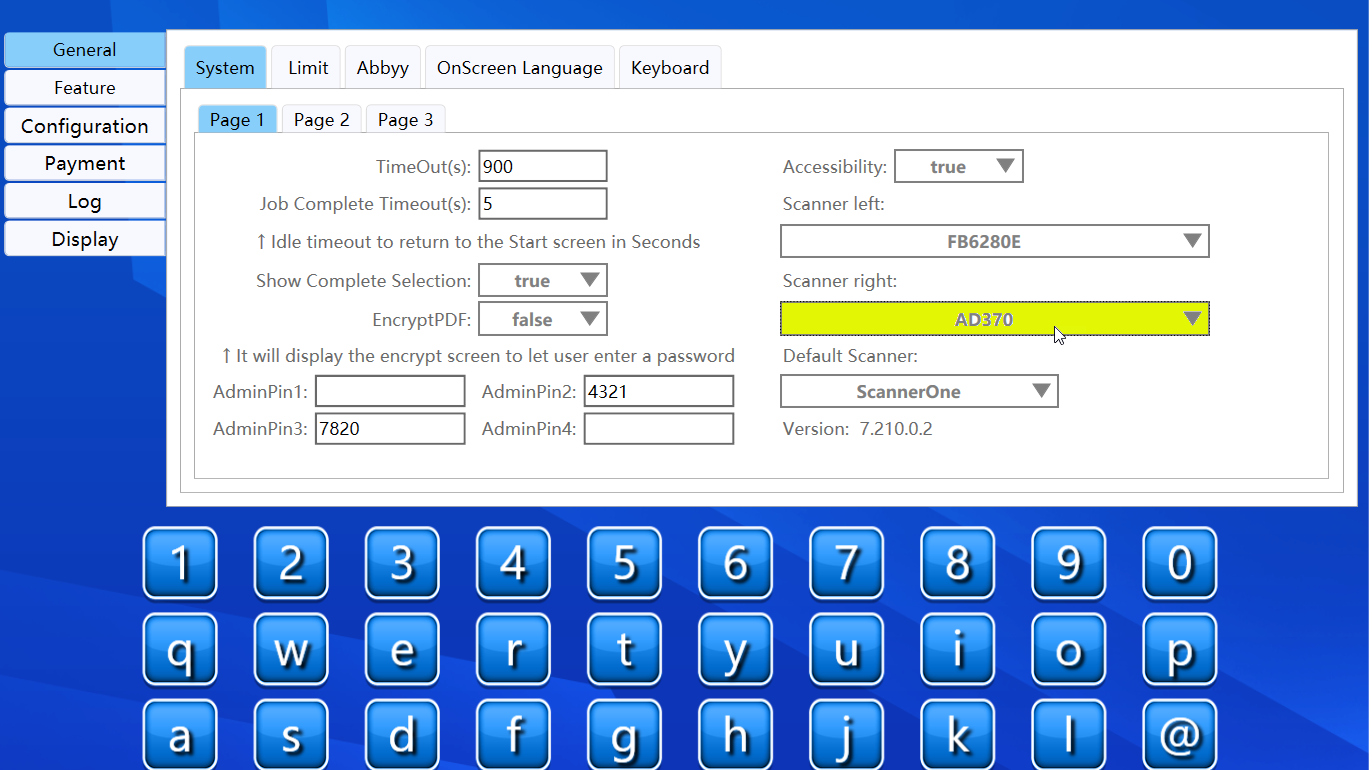
ICC profiles are selected based on the scanner model.
-
A deterministic naming or mapping convention is used:
(Example:ScannerModelName.icm) -
If the ‘AD370’ scanner is configured, in this case the naming convention would be: ad370.icm.
-
The mapping logic is fixed and documented in code.
Each scanner can have its own dedicated ICC profile.
Workflow – How ICC Processing Works
High-Level Flow
-
User selects a scanner,
-
User initiates a scan,
-
Scan completes successfully.
-
System checks:
-
Is Enabled ICC Profile set to True and
-
Is the image source Scanner.
-
-
System attempts to locate an ICC profile for the selected scanner.
-
If a valid ICC profile exists:
-
ICC profile is applied immediately.
-
-
OCR, printing, and other workflows continue unchanged.
Application Rules
ICC Profiles Are Applied Only When
-
Enabled ICC Profile is set to True.
-
The image source is Scanner.
-
A matching ICC profile exists for the selected scanner..
ICC Profiles Are NOT Applied When
-
Image source is:
-
Cloud
-
USB
-
-
ICC setting is disabled.
-
No matching ICC profile exists.
Image Handling & Constraints
-
Original .bmp filename is preserved.
-
No duplicate or additional image files are created.
-
ICC profiles are applied exactly once per image.
-
Reprocessing or rescanning does not reapply ICC.
Error Handling & Logging
Missing ICC Profile
If no ICC/ICM file is found for the selected scanner:
-
Scanning continues normally.
-
ICC processing is skipped.
-
A warning or informational entry is logged in
system.log, which is located under:
C:\ProgramData\SimpleScanStation\Current Log\System.Log
Invalid or Unreadable ICC Profile
If an ICC file exists but cannot be read or applied:
-
Error is handled gracefully.
-
ICC processing is skipped.
-
Detailed error information is logged in
system.log.
Scanning workflows are never blocked due to ICC issues.
Printing & OCR Behavior
-
Printing logic remains completely unchanged.
-
OCR workflows are not impacted.
-
Only scanned images are affected by ICC processing.
Key Notes
-
ICC processing is optional and fully configurable.
-
Only one Control Panel setting is required.
-
ICC profiles enhance scans but do not change default behavior.
-
Cloud and USB images are never modified.
-
No regression in scanning, OCR, or printing workflows.
Summary
The ICC Profile feature in ScanEZ provides scanner-specific color optimization for scanned images while maintaining full compatibility with existing workflows.
With a single Control Panel setting, administrators can enable enhanced scan quality across all scanner-based operations—without impacting Cloud imports, USB images, printing, or OCR functionality.
This ensures optimized, consistent, and reliable scan output with minimal configuration effort.