

In this section, we will configure/modify the IPP Printing settings of the ScanEz application. Let’s discuss this section in detail.
This setting overrides printing setting for all features except ePRINTit SaaS PPL.
📘 Configuration
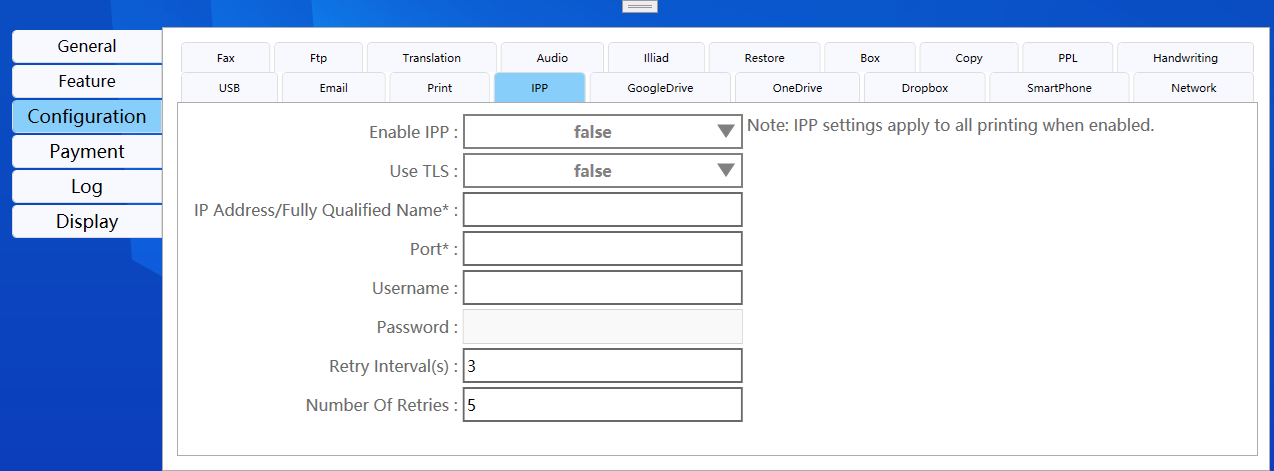
-
Enable IPP: Enable/Disable IPP functionality.
-
Use TLS: Enabling TLS enables secure communicationand uses IPPS protocole.
-
IP Address/Fully Qualified Name*: Enter the IPP server address.
-
Port: Enter the IPP port number.
-
Username: Enter the username for IPP authentication.
-
Password: Enter the password for IPP authentication.
-
Retry Timeout(s) : Enter timeout in milliseconds. Default will be 3 seconds
-
No of retries: Enter the number of times it should retry in case of failure. Default will be 5 retires.
Back and Save button
We can save our settings using the “Save” button.
We can go back to our home page using the “Back” button.
Please do not change any settings unless advised.
Configuring IPP-Enabled Mode
-
When IPP Enable is turned on, the system will:
-
Read IPP configuration settings from
IPPSetting.xml. -
If no IPP setup exists in ePrintItSaaS, retrieve the IPP configuration settings from
Print.XML. -
Connect to the IPP server using Basic Authentication.
-
Perform the following actions:
-
Check Printer Attributes: It will check printer attributes
-
Send Document for Processing: Transmit the document to the IPP server for processing.
-
-
Configuring Non-IPP Mode with Multiple Printers
-
When IPP Enable is turned off ( In ePrintSaas and ScanEZ ), the system will check if multiple printers are configured:
-
Multiple Printers Enabled:
-
The system will refer to Configuration → Print / Copy → Page 1 for the following printer types:
-
Color Printer
-
Grayscale Printer
-
Black & White Printer
-
-
The print job will be routed to the appropriate printer type based on job requirements and configuration.
-
-
Configuring Non-IPP Mode with Default Printer
-
If IPP Enable is off and multiple printers are disabled, the system defaults to using the System Default Printer, typically a LAN-connected printer.
Pre-Job Status Check
Before sending a print job to the printer, the system will:
-
Verify the printer status
-
Ensure that the printer is available to print the job.
Flowchart
Unknown Attachment