

In this section, we will see how to use the scan-to-box service. Let’s see it in detail.
📘 Instructions
A step-by-step guide to using this service.
-
Use this guide to access the select media page.
-
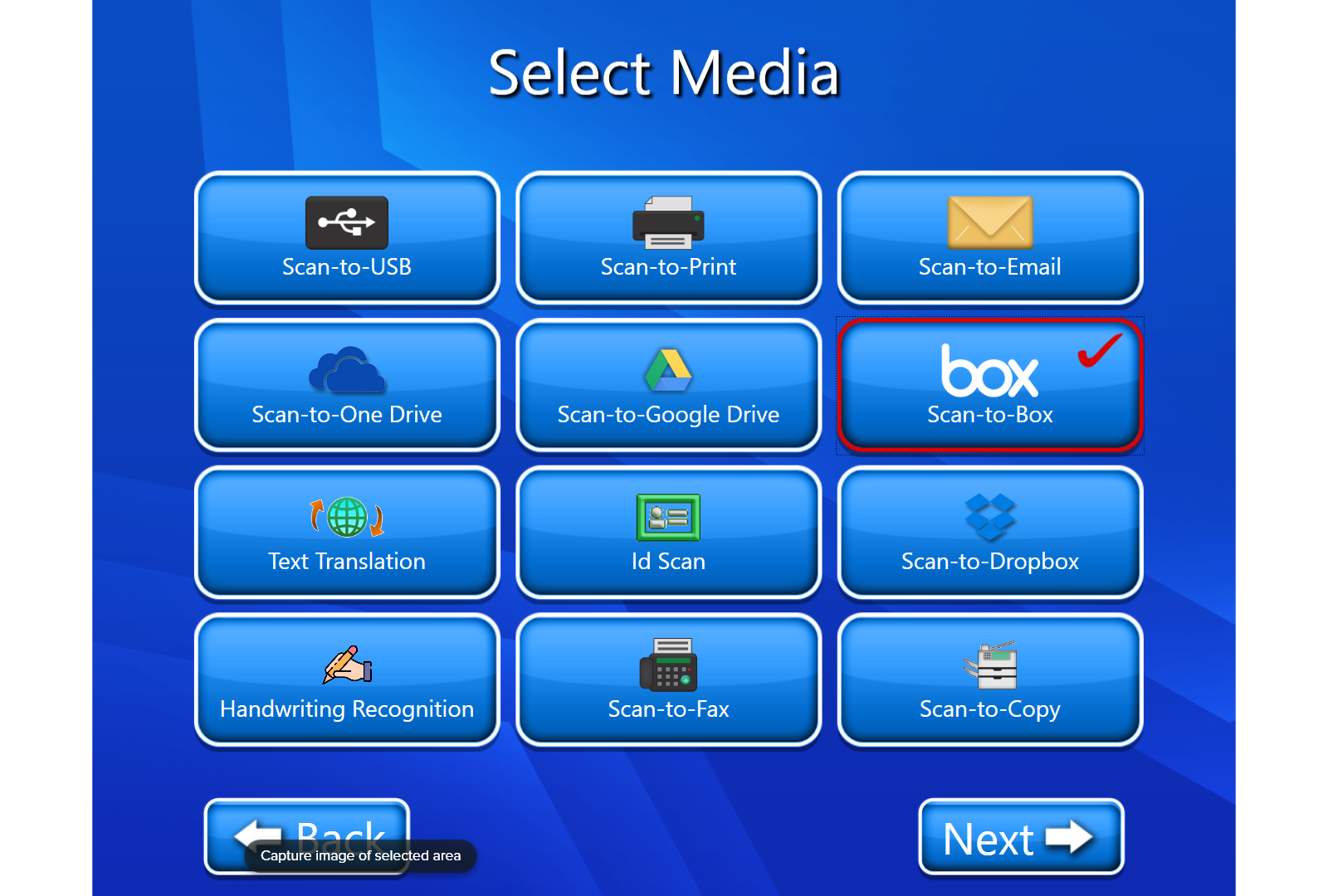
On the select media page, select “Scan-to-Box”.
-
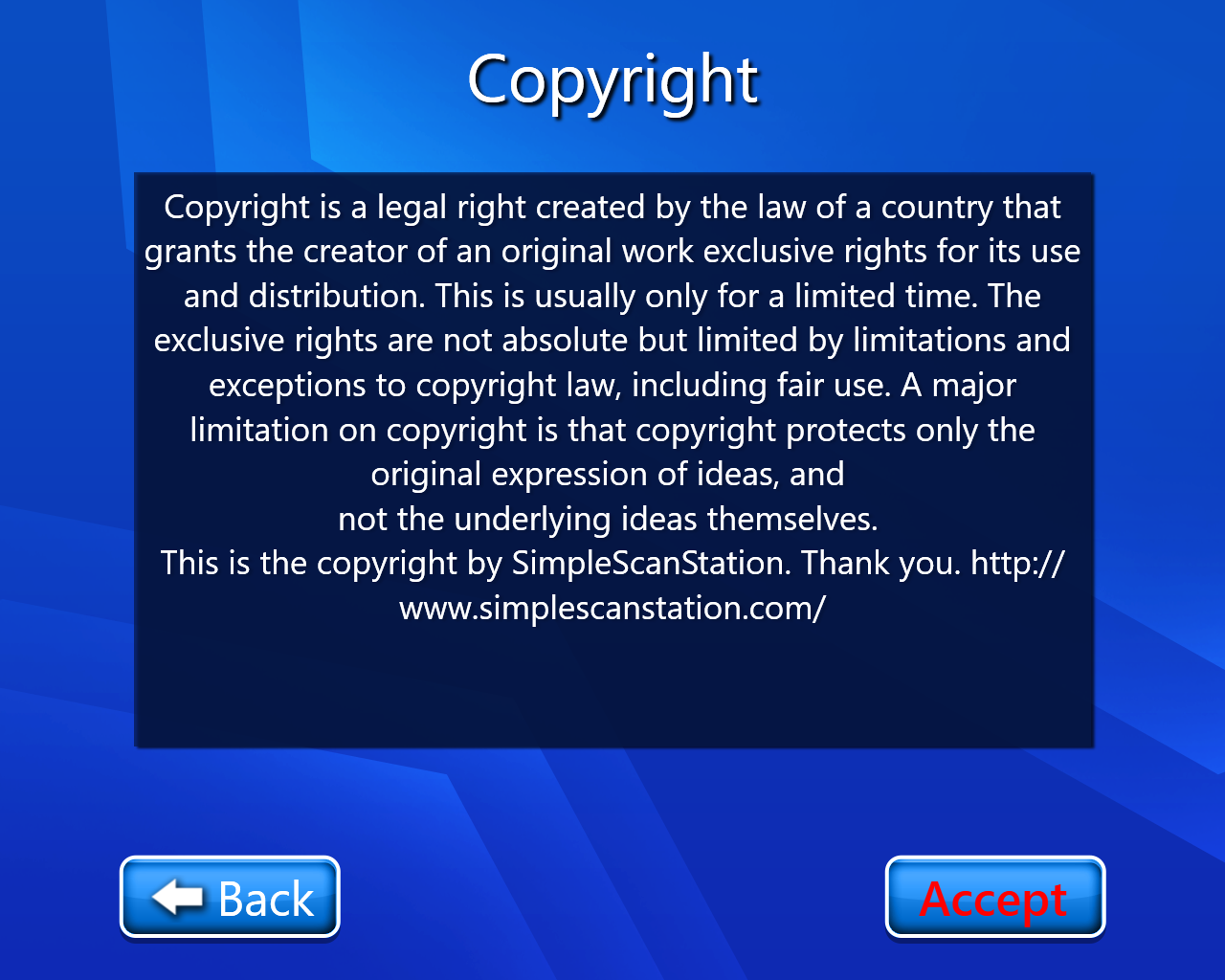
The copyright page will open (select accept).
-
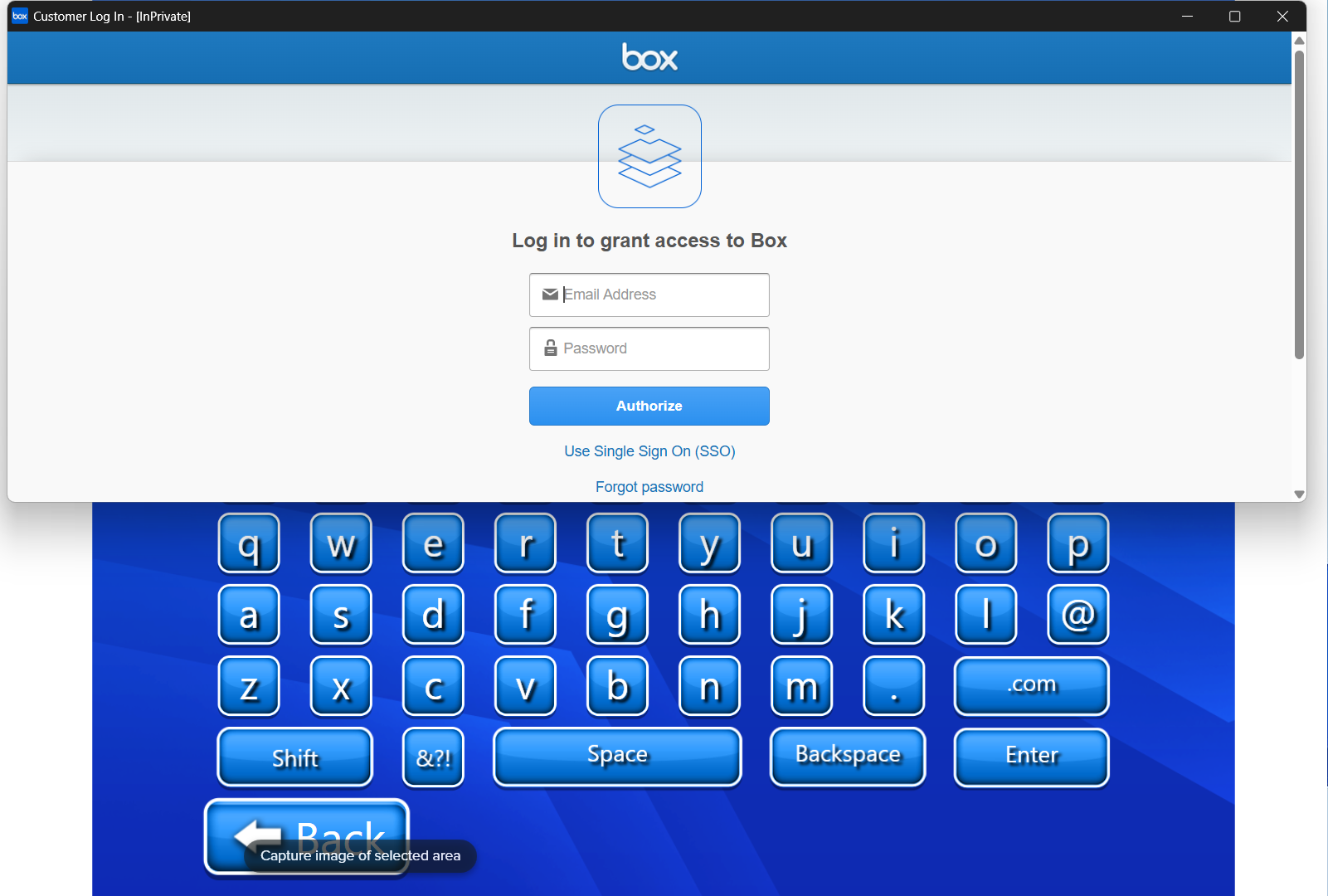
Now we have to log in using our account credentials.
-
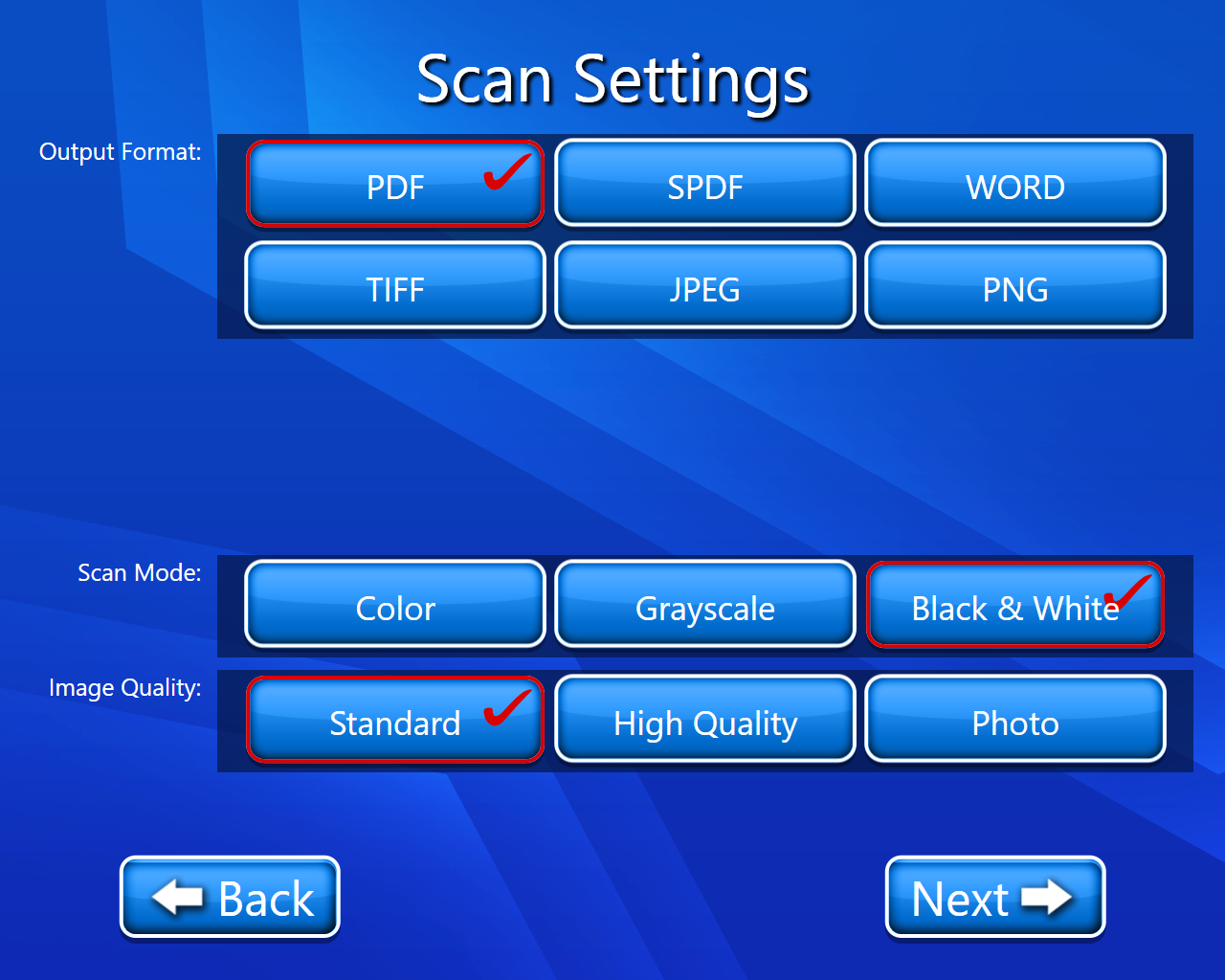
The scan setting page will open where we can select the output format, scan mode, and image quality.
-
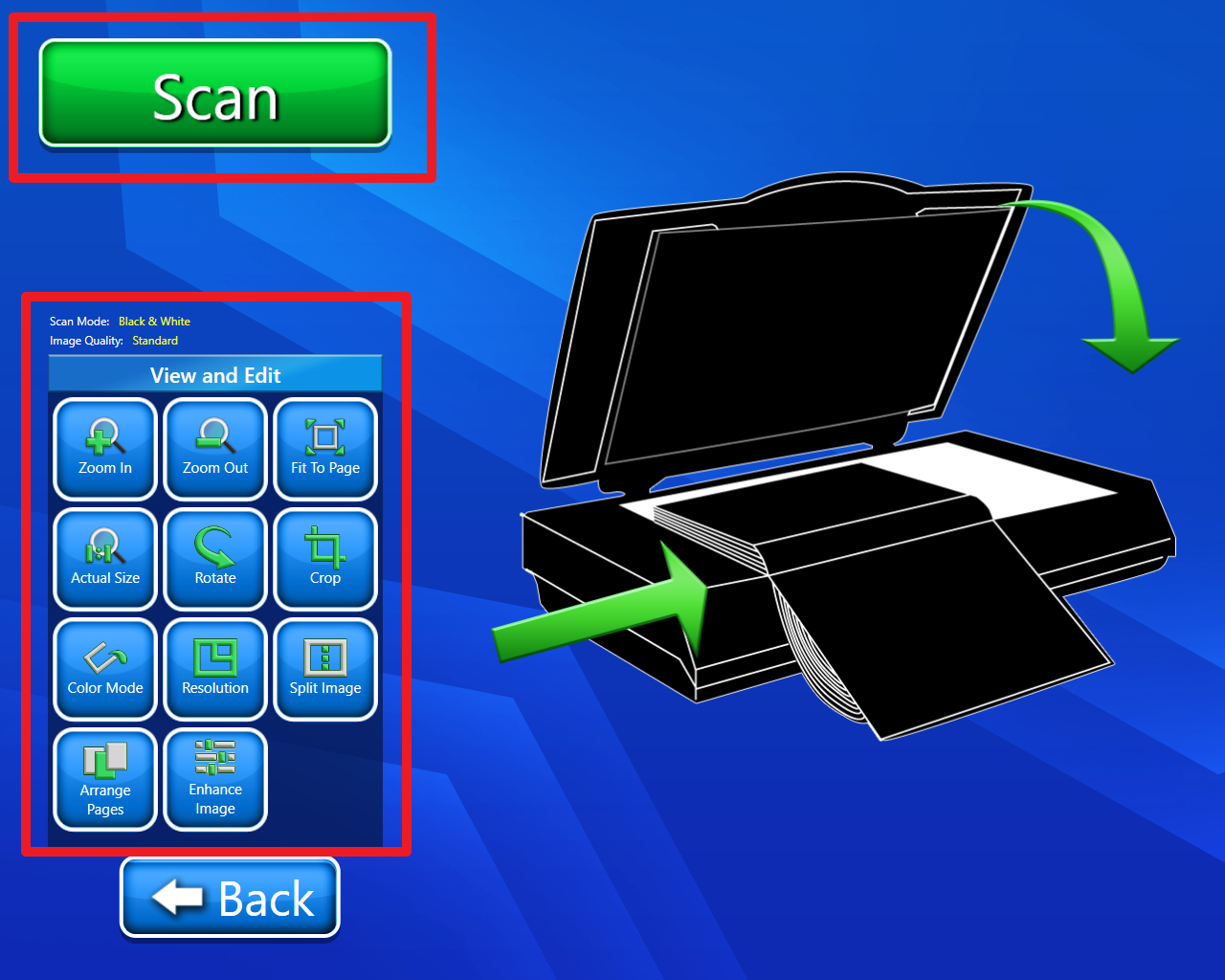
Now we have to scan our document (On this page we have multiple options like we have editing options we can also delete our scanned document etc.). For more details on View and Edit we can go through View and Edit document.
-
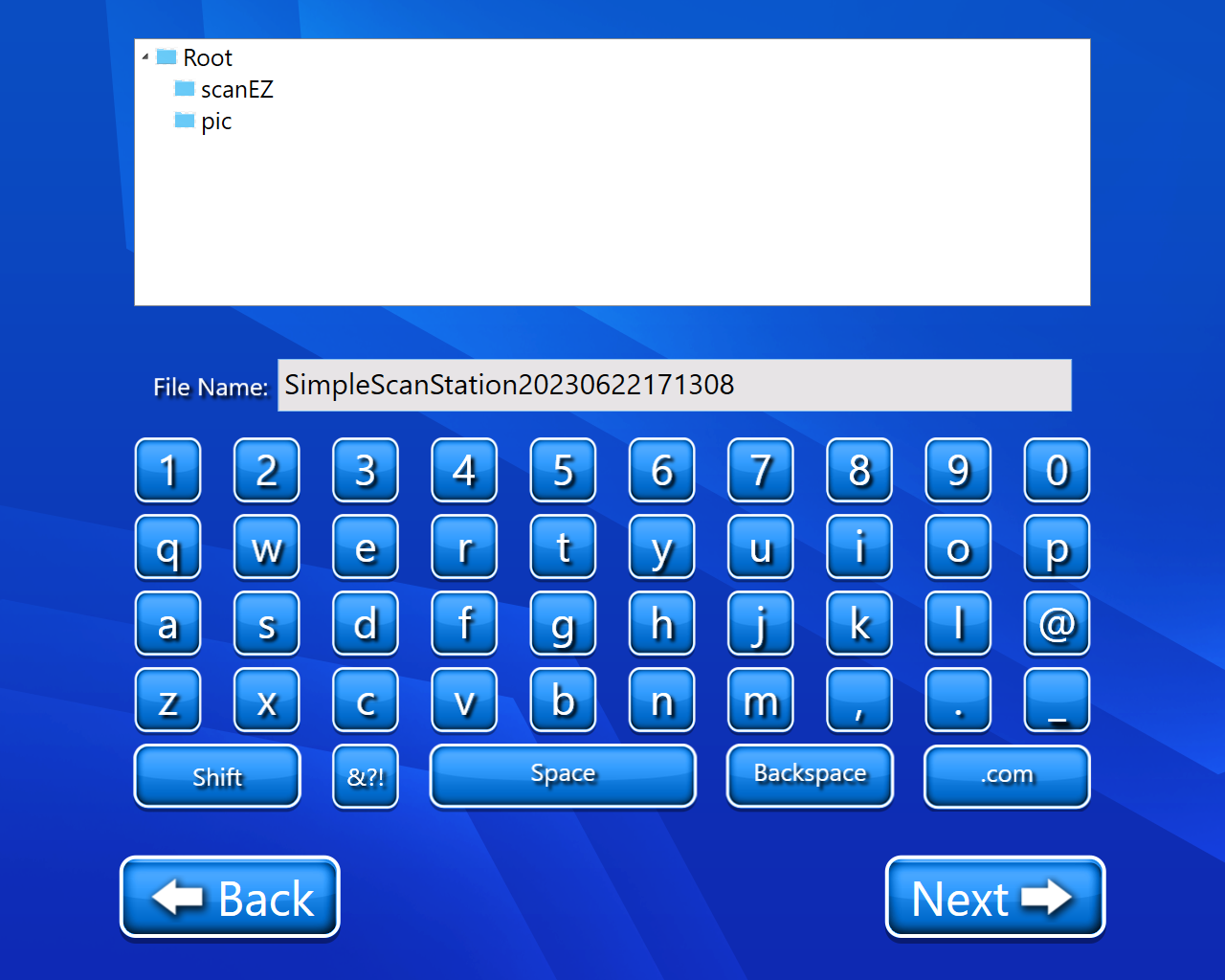
Now we have to select the path and enter the name of the scanned document (the default name will be SimpleScanStation).
-
Now click on next and our document will be saved to our Box account and we are proceeded to the Job completion screen.