

1. Overview
Scanez provides multiple payment integration options that allow customers to pay for scanning, copying, and related services directly from the Customer Panel. The application supports configuring up to two payment methods simultaneously, giving flexibility to organizations based on their environment and payment workflows.
This document explains:
-
Supported payment options
-
How payment selection works from the customer panel
-
End‑to‑end payment flow (with examples)
-
Supported media and features where payments can be applied
2. Supported Payment Options
The following payment systems can be integrated with Scanez:
-
Staff Override
-
PaperCut NG
-
BlackBoard
-
CBord
-
PaperCut
-
Monitor
-
Nayax
-
SAM
-
9900
-
Jamex
📌 Note: A maximum of two payment options can be configured at the same time.
3. Media & Features Supported for Payment
Payment configuration can be applied across all Scanez media and features listed below:
-
USB
-
Email
-
Print
-
Google Drive
-
OneDrive
-
Dropbox
-
Smartphone
-
Network
-
FAX
-
FTP
-
Translation
-
Audio
-
Illiad
-
Restore
-
Box
-
Copy
-
PPL
-
ID Scan
-
Handwriting Recognition
This ensures a consistent payment experience regardless of the selected output or functionality.
4. Payment Flow – Customer Panel
4.1 Payment Selection Screen
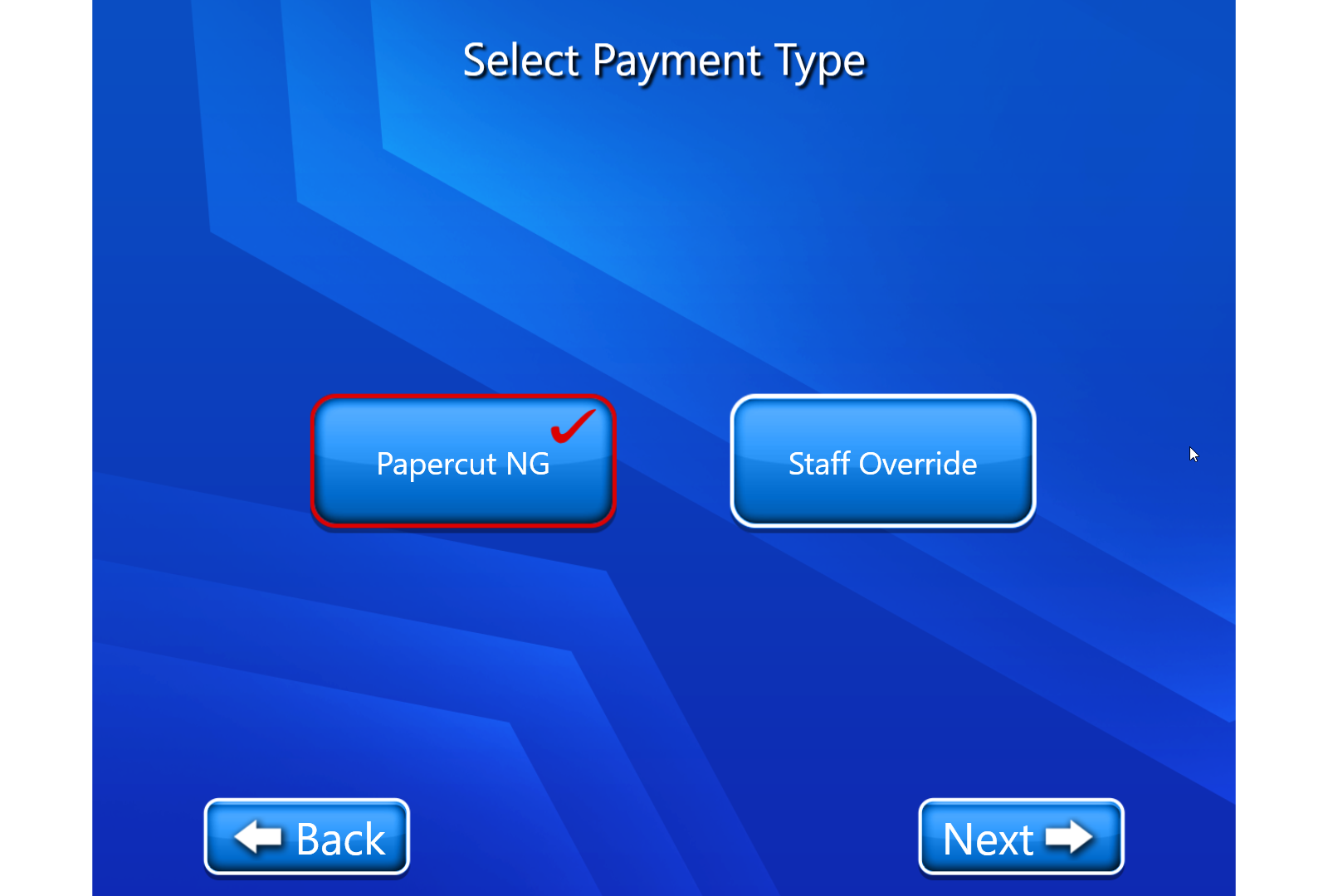
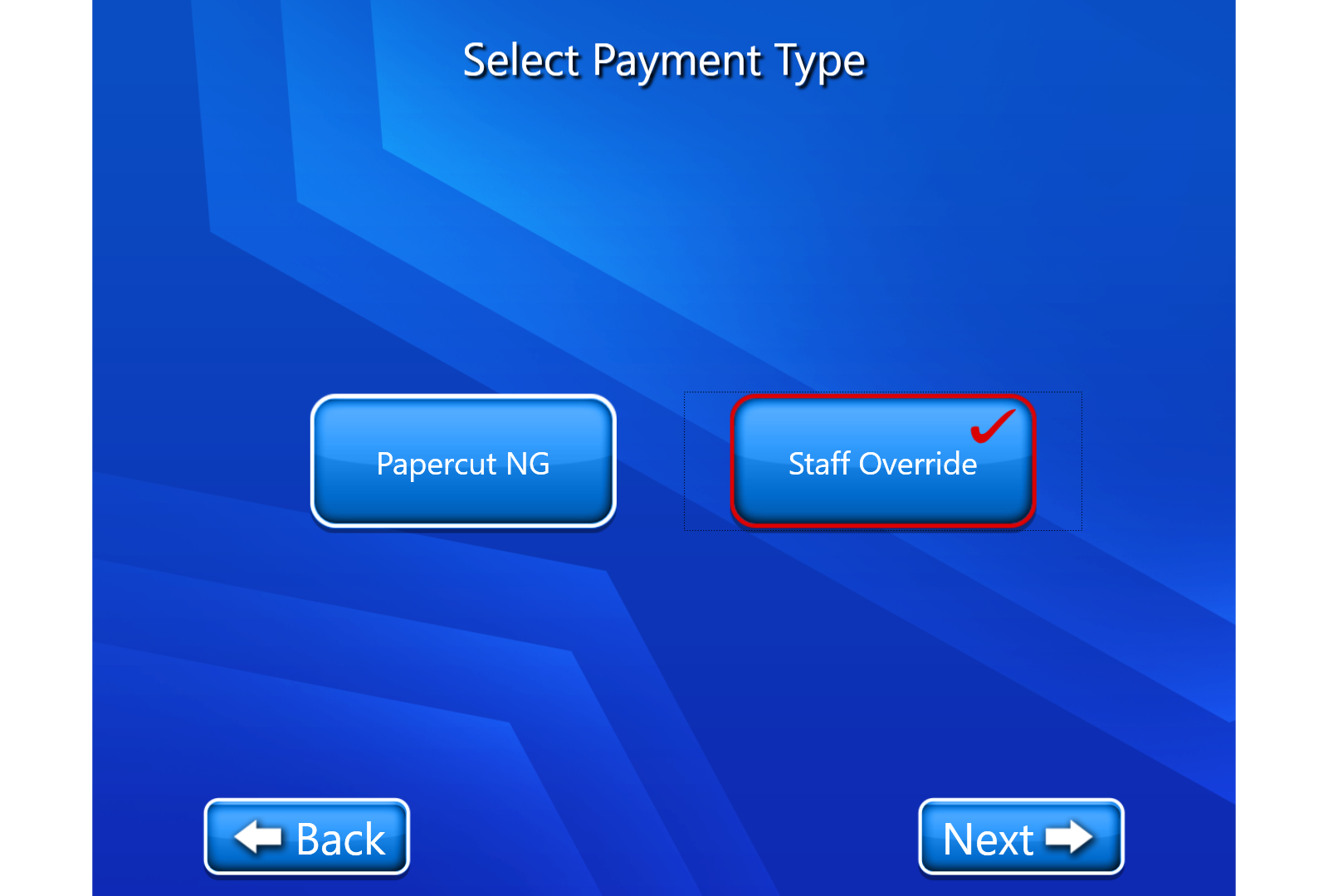
When a user selects any configured media option (for example: Scan-to-Copy), the Payment Selection screen is displayed, as demonstrated below
-
Only the configured payment methods appear on this screen.
-
Example: If Staff Override and PaperCut NG are configured, both options are shown.
The user selects one of the available payment options to proceed.
4.2 PaperCut NG Flow
If the user selects PaperCut NG:
-
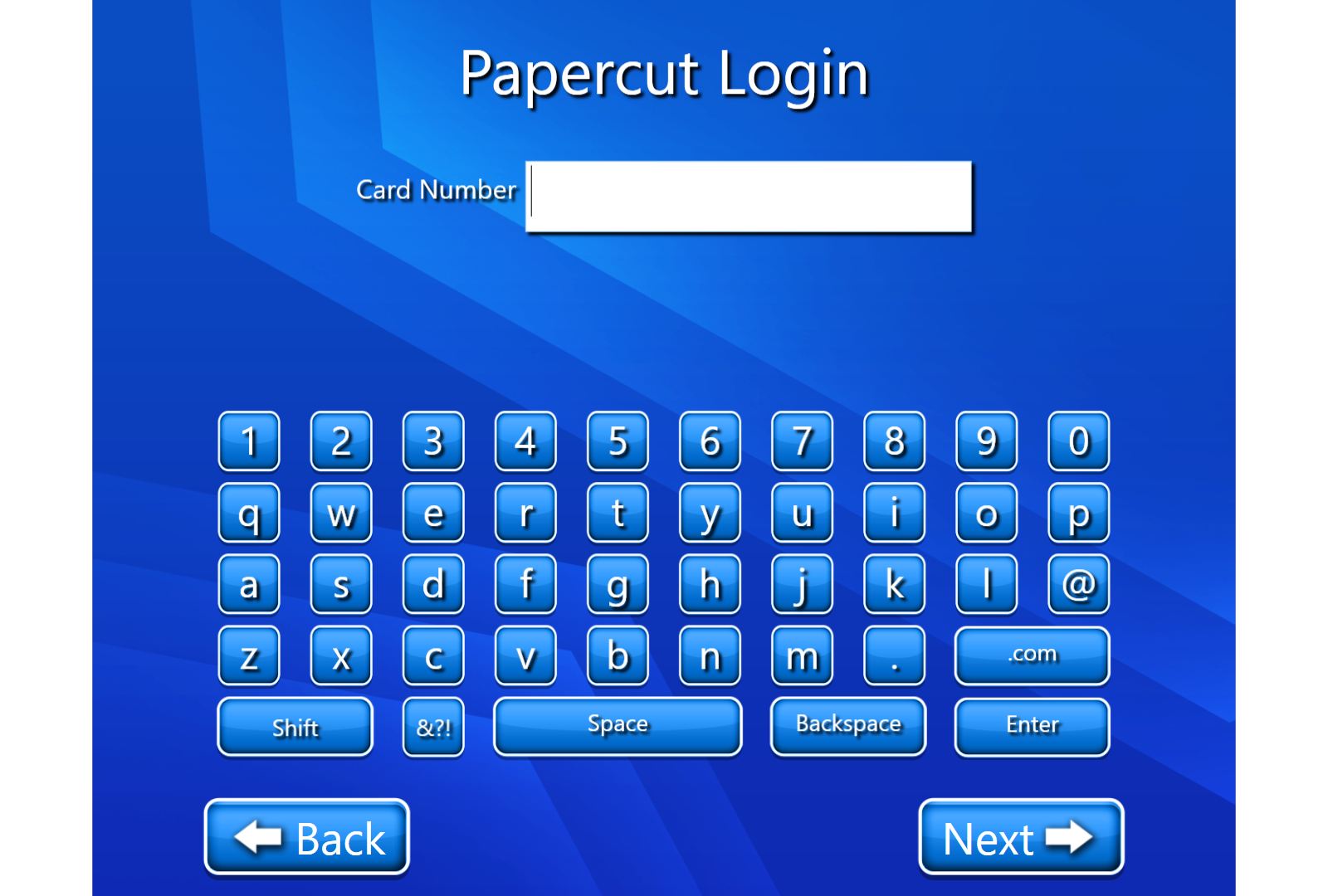
The PaperCut authentication/payment screen is displayed.
-
The user completes authentication as per PaperCut configuration by entering the Card number.
-
After successful authentication, the user is redirected to the Copyright Acknowledgement screen.
-
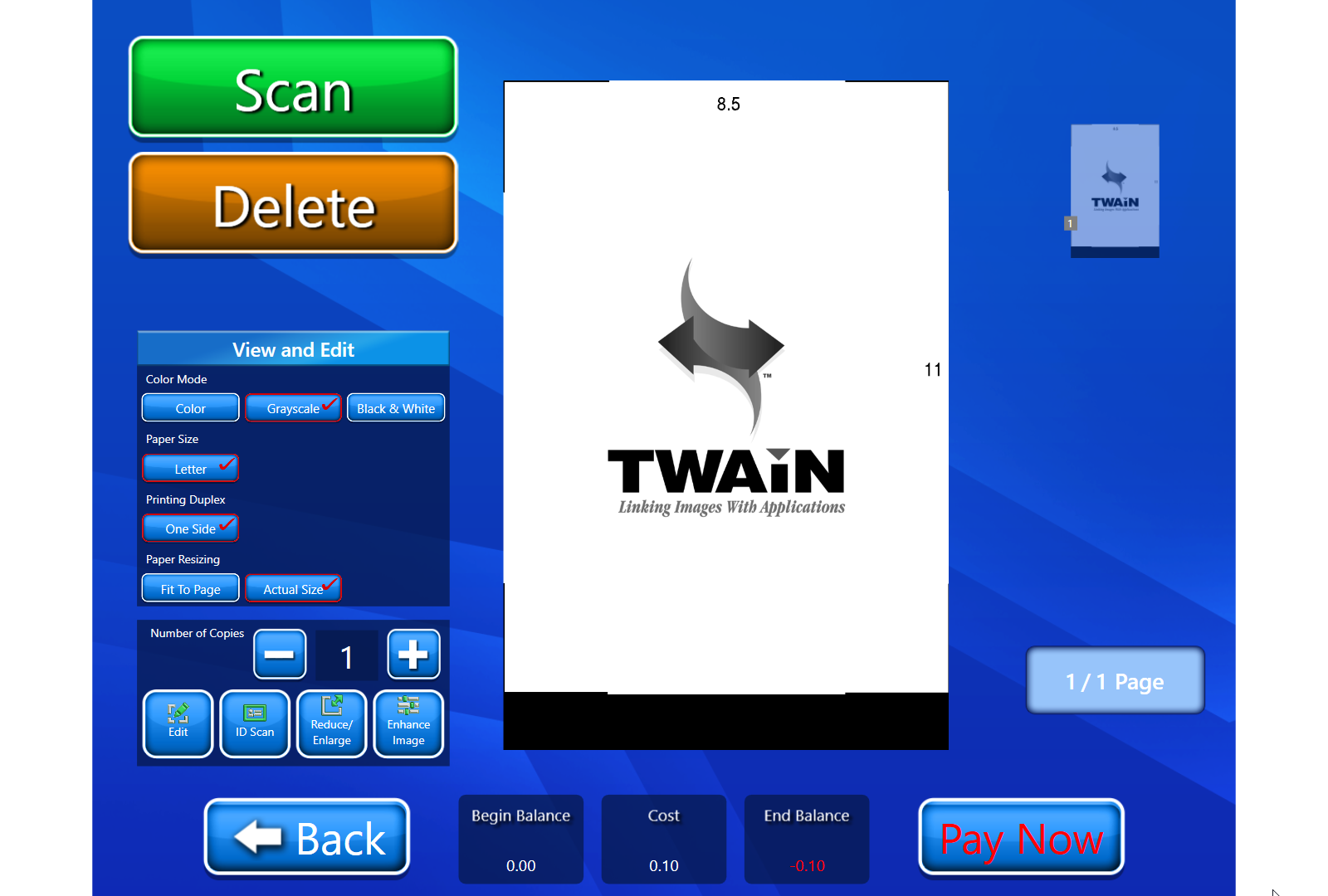
The user proceeds to the Scanning / Copying screen.
-
Pages are scanned or copied as required.
-
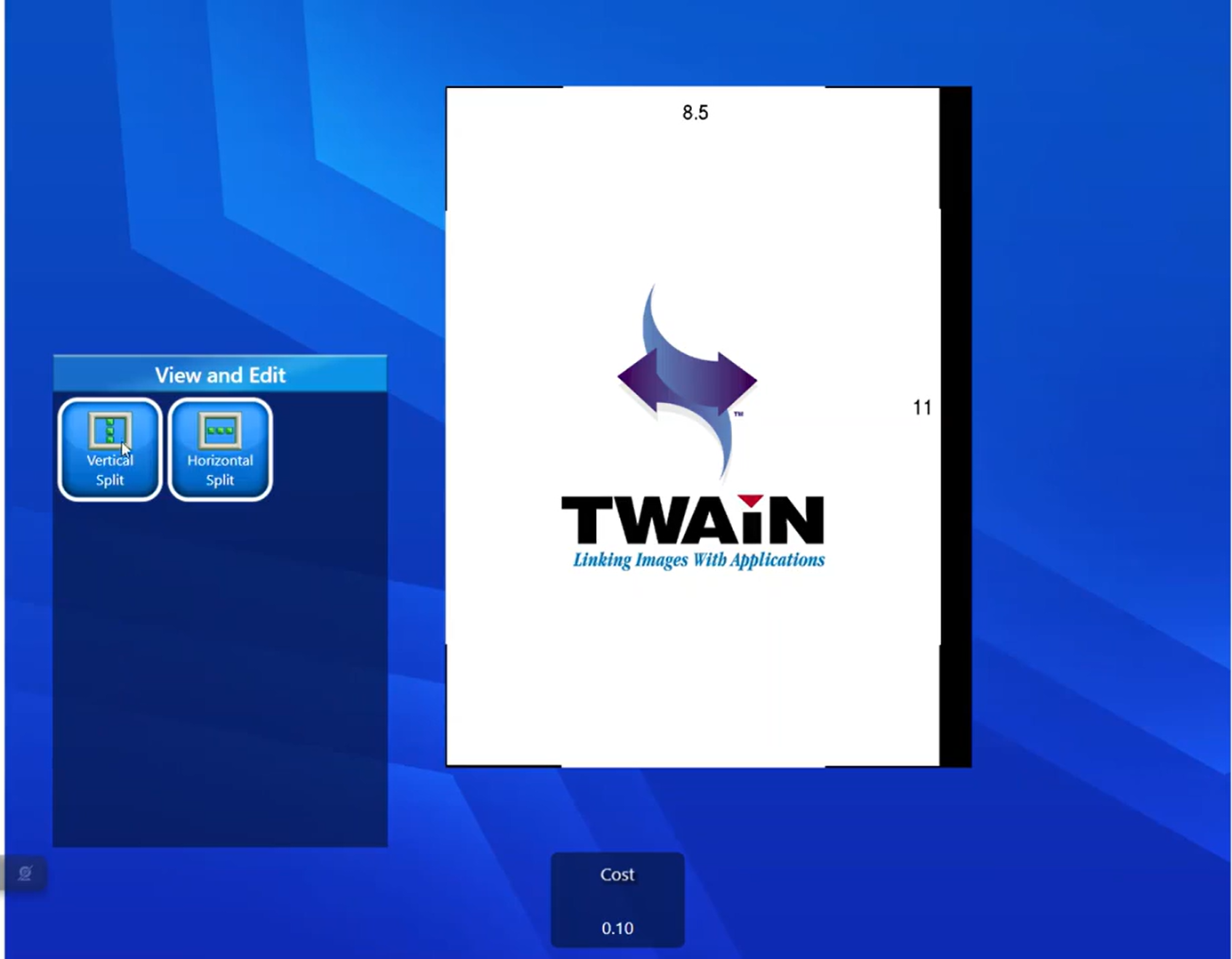
For Reduce/Enlarge and other Formatting options, Pay Now button will not be displayed.
-
Cost is calculated dynamically based on:
-
Number of pages
-
Color mode (Color / Grayscale / Black & White)
-
Paper size
-
Duplex settings
-
-
The job completes automatically after scanning, and the user is redirected to the other options like scan more & I’m done.
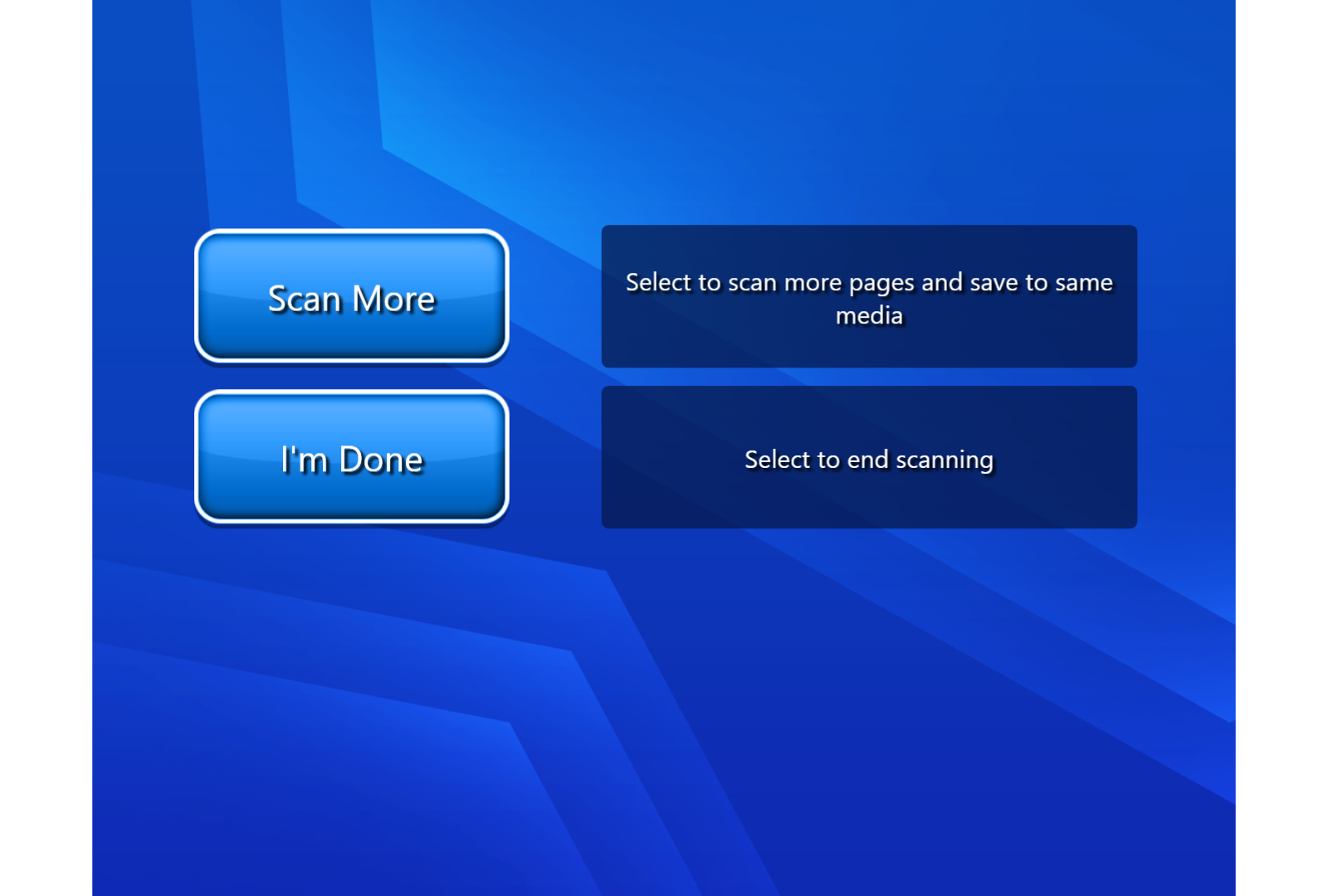
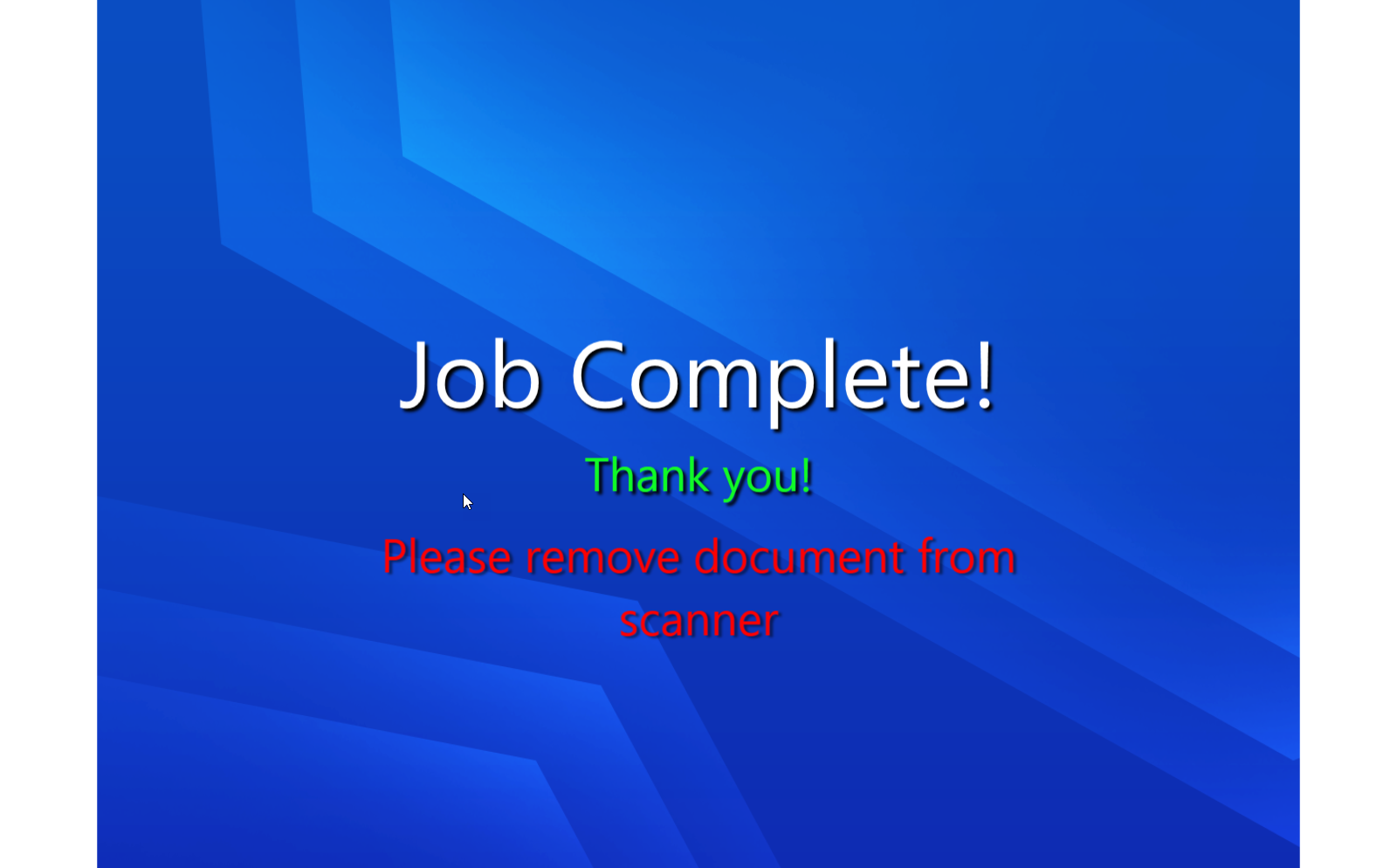
On selecting the desired options, user is redirected to the Job Completion screen.
4.3 Staff Override Flow
If the user selects Staff Override:
-
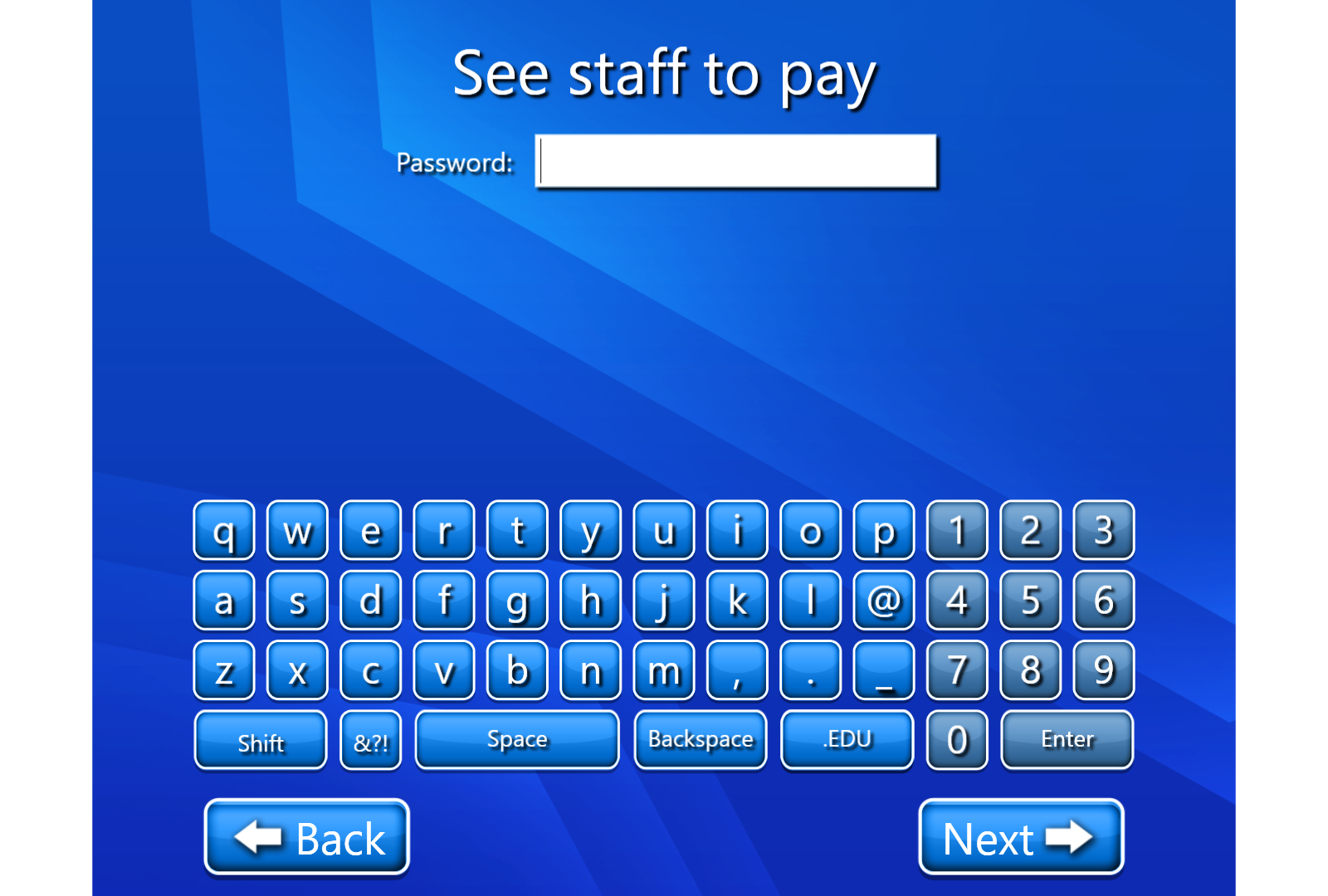
The Staff Override authentication screen is displayed.
-
The user enters the Staff override Credentials.
-
Upon successful validation, the user is redirected to the Copyright Acknowledgement screen.
-
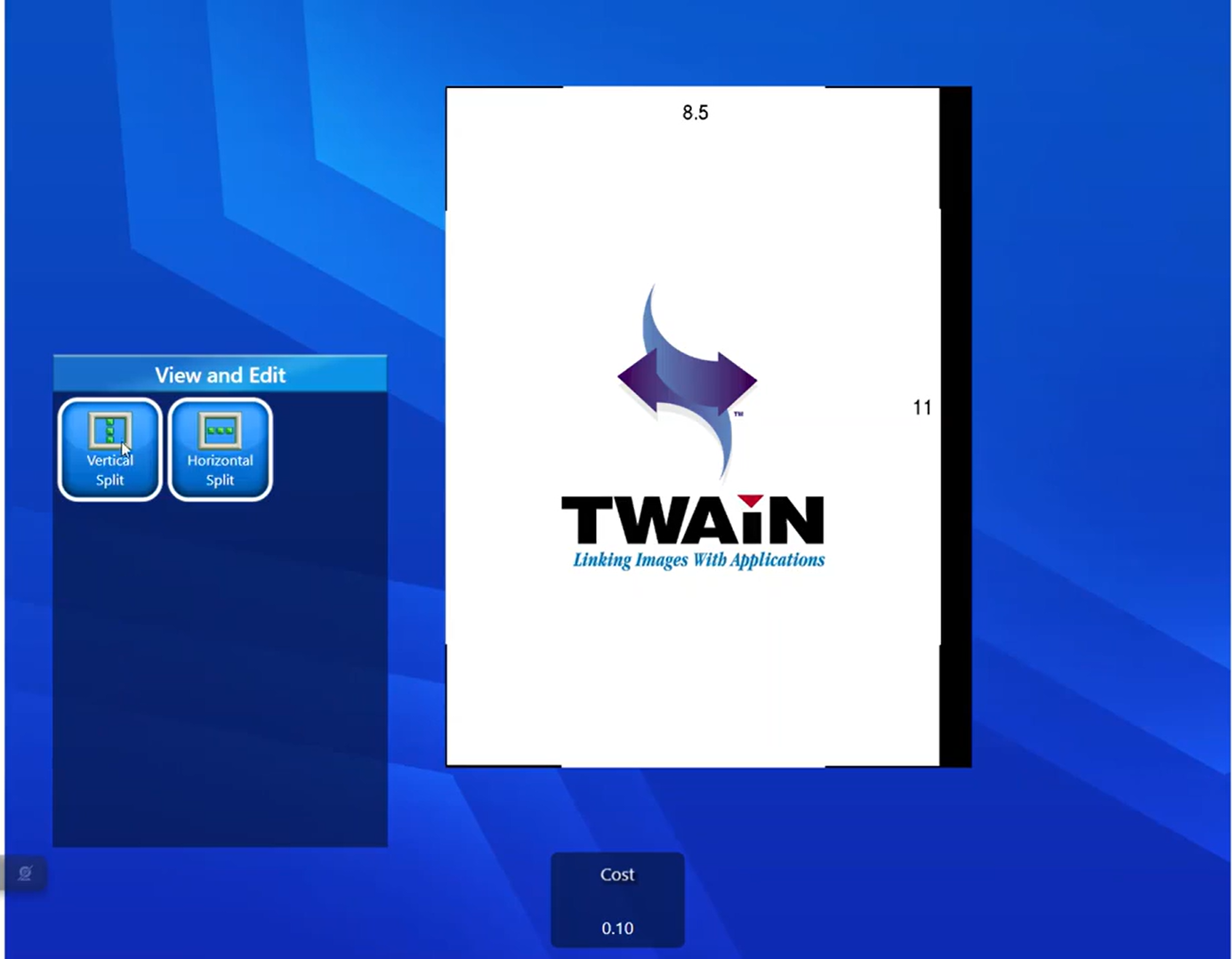
The user proceeds to the Scanning / Copying screen.
-
Any number of pages can be scanned.
-
For Reduce/Enlarge and other Formatting options, Pay Now button will not be displayed.
-
The cost updates in real time based on scanning parameters such as:
-
Page count
-
Color mode
-
Paper size
-
Duplex settings
-
-
After scanning is complete, the user selects the Pay Now button.
-
The user is redirected back to the Staff Override screen for final confirmation.
-
Once validated, the job is processed successfully.
-
The job completes automatically after scanning, and the user is redirected to the other options like scan more & I’m done.
On selecting the desired options, user is redirected to the Job Completion screen.
4.4 CBord Flow
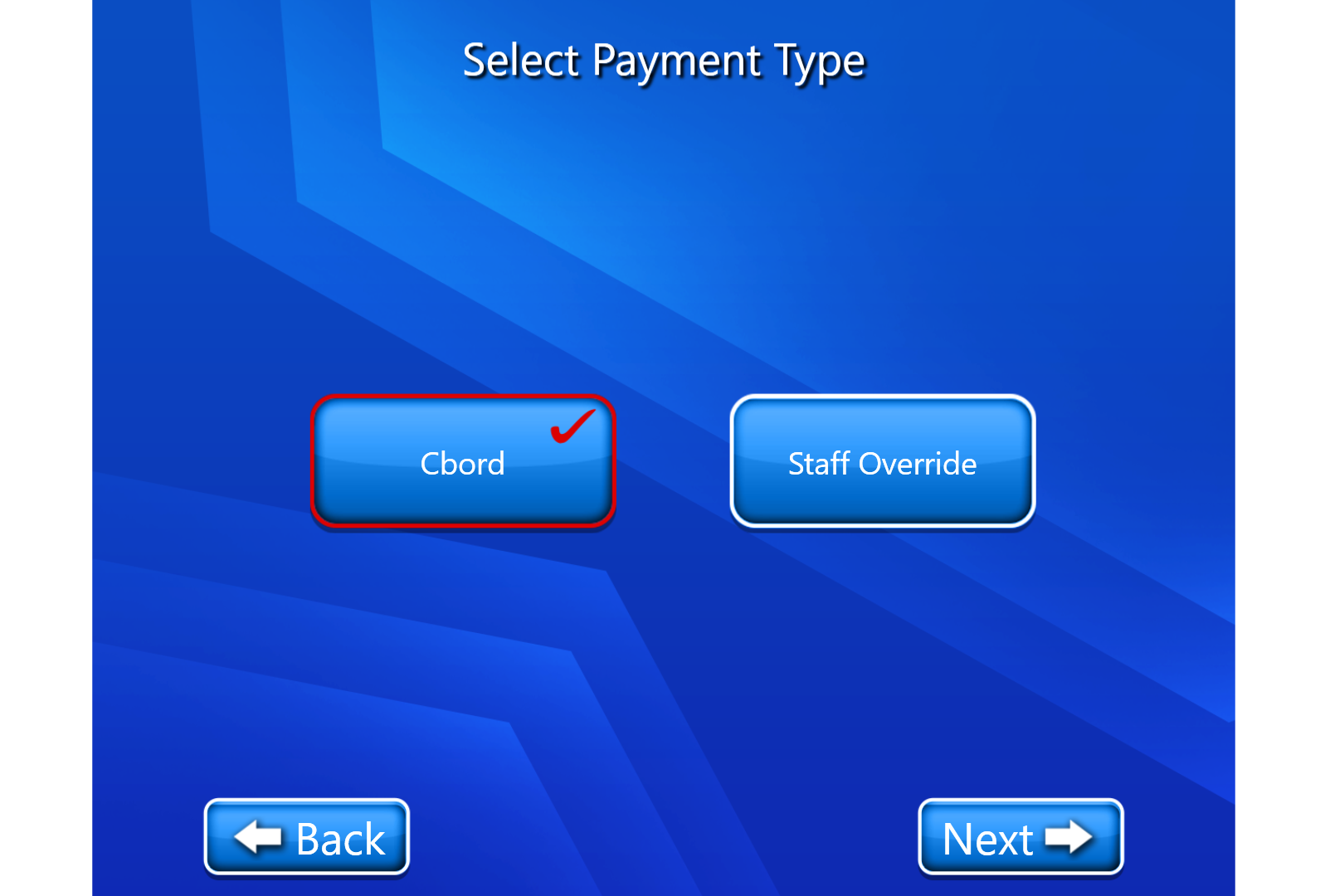
If the user selects CBord:
-
On selecting the CBord payment option and navigating with the Next button, the user is redirected to the Copyright Acknowledgement screen.
-
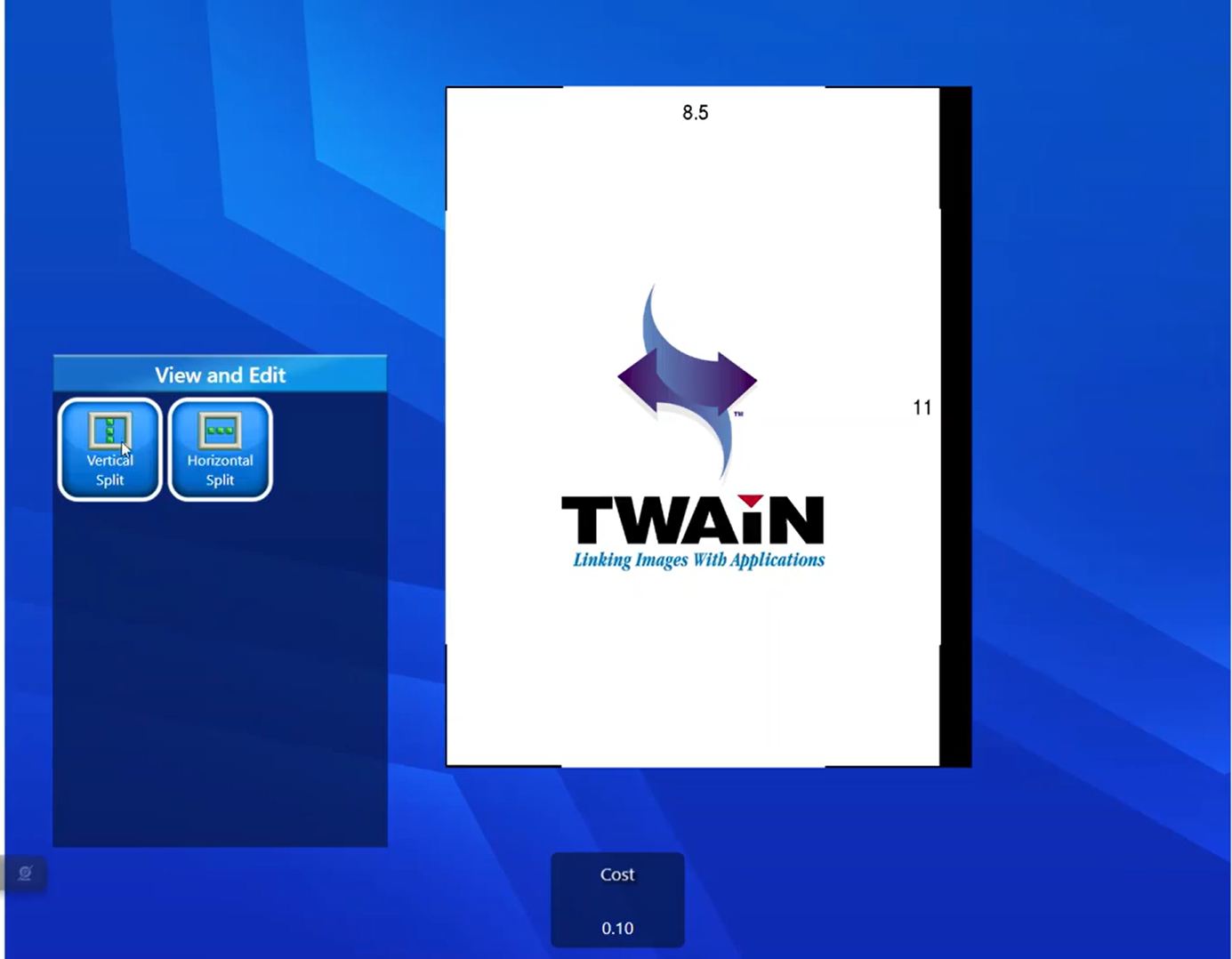
The user proceeds to the Scanning / Copying screen.
-
Any number of pages can be scanned.
-
For Reduce/Enlarge and other Formatting options, Pay Now button will not be displayed.
-
The cost updates in real time based on scanning parameters such as:
-
Page count
-
Color mode
-
Paper size
-
Duplex settings
-
-
After scanning is complete, the user selects the Pay Now button.
-
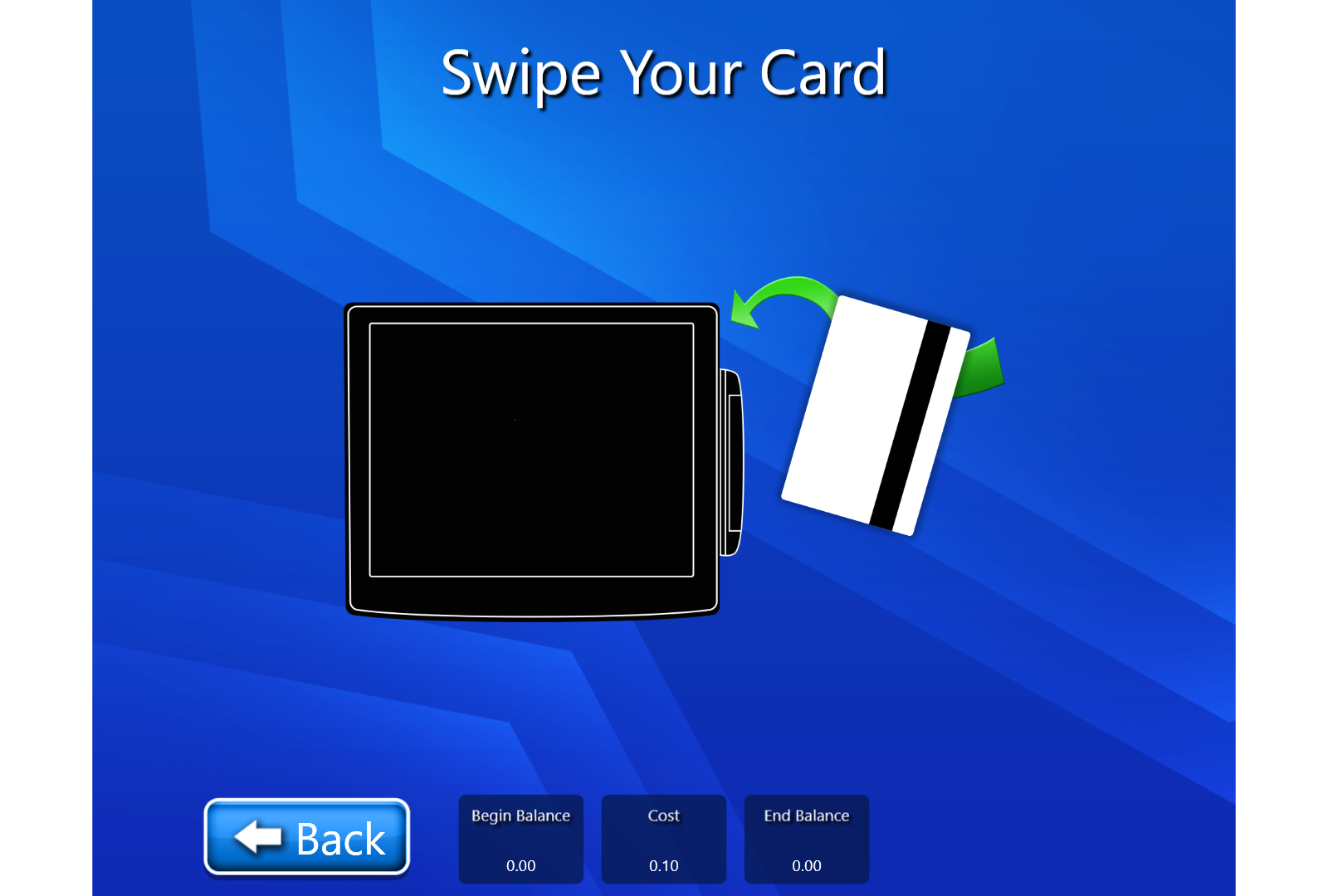
The user is redirected to the Swipe Your Card screen for final confirmation.
-
Once validated, the job is processed successfully.
-
The job completes automatically after scanning, and the user is redirected to the other options like scan more & I’m done.
a. If the user selects ‘Scan more’, then it the user is navigated to the next screen for further scanning.
b. On selecting the ‘I’m Done’, user is redirected to the Job Completion screen.
5. Cost Calculation & Payment Confirmation
-
Cost is displayed during the scanning process.
-
Charges vary depending on document attributes and selected options.
-
Payment is finalized only when the user confirms the job (for example, using Pay Now in Staff Override).
6. Job Completion
After successful payment and processing:
-
The job is completed successfully.
-
The user is redirected to the Job Completion screen.
-
The session ends or returns to the home screen depending on system configuration.
7. Key Notes
-
Only configured payment methods are shown to the user.
-
Maximum two payment methods can be active at one time.
-
Payment integration applies uniformly across all supported Scanez media.
-
Staff Override requires final confirmation via the Pay Now flow.
8. Summary
Scanez offers a flexible and secure payment workflow by supporting multiple third‑party payment systems. With configurable payment options and consistent behavior across all media types, customers can complete scanning and copying tasks seamlessly while ensuring accurate cost calculation and secure payment processing.
Following artifact demonstrates the workflow of Payment flow: